Why do these idiots at ebay waste their time, the mobile version of their site is so crippled it makes users want to curl up in a corner and die
Don't even think you can use it to sell anything either, there is just no buttons for it - crippled.
Of course, uses can opt out and use the classic site (still not 100% on Android) but the redirect is cookie based and if you delete your cookies, you are presented with the same shit again.
The only solution is to create a bookmark www.ebay.com.au/?redirect=mobile
WindyCityTech Blogger
WindyWindyCityTech Wordpress
Showing posts with label tablet. Show all posts
Showing posts with label tablet. Show all posts
Saturday, 3 September 2011


Friday, 26 August 2011
Hp WebOs Touchpad Tablet sell for $99, Dont Buy it.
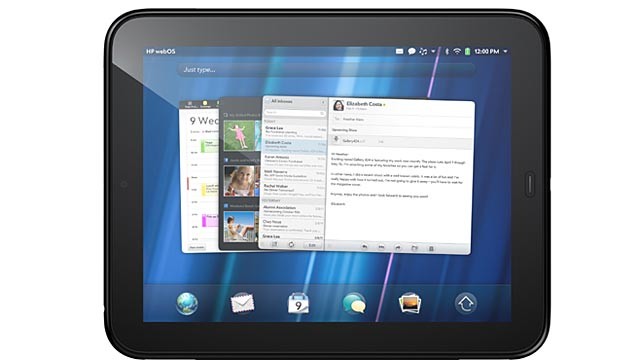
It will never be updated, like android. It is closed source, with some open source aspects released under GPL.
Also a tablet without 3G or any other real portable internet connectivity, is crippled and homebound. Only having Wifi is not good enough.
WindyCityTech Blogger
WindyWindyCityTech Wordpress
Friday, 27 May 2011
Optus ZTE V9 Android device review + Upgrade to 2.2
This is a great price tablet, $149 through Optus prepaid and comes with PP net and phone access.
 It has:
The touch screen is good and the whole device is very simple and minimalistic. When purchasing it you will have to surrender your identity to the retailer.
We decided to upgrade to Android 2.2 to get flash player working and to use the device to share 3G over WIFI.
Upgrading the ZTE V9 to Android 2.2.
Download the upgrade package application to your PC (Optus_V9 Upgrade Tool_30th_April.zip).
Run the Upgrade tool and install the driver to your PC and keep the upgrade package application open.

Switch off the ZTE device, power it down, connect it to the PC via the USB cable.

Put the ZTE device into FTM mode by pressing power and quickly holding both volume buttons until FTM is displayed on the screen.

The ZTE device will open another com port and the upgrade application will upload the new OS via USB.
When done, disconnect the USB cable and with a few minutes until it boots up, be patient.
WindyCityTech Blogger
windywindycitytech wordpress

- Micro USB port for PC connection
- Phone
- Bluetooth
- Camera
- Headphone Jack
- Sim Slot for 3G
- Micro SD slot
- 7 Inch Touch Screen
- FM Radio
- Wifi
- and GPS (undocumented)
- It can't play AVI files!
- You will need a google account to install apps, it asks you to sign in.
- Locked to Optus network and Optus branded outside and in. For now ;)
- Too big to use as a phone :()
The touch screen is good and the whole device is very simple and minimalistic. When purchasing it you will have to surrender your identity to the retailer.
We decided to upgrade to Android 2.2 to get flash player working and to use the device to share 3G over WIFI.
Upgrading the ZTE V9 to Android 2.2.
Download the upgrade package application to your PC (Optus_V9 Upgrade Tool_30th_April.zip).
Run the Upgrade tool and install the driver to your PC and keep the upgrade package application open.

Switch off the ZTE device, power it down, connect it to the PC via the USB cable.

Put the ZTE device into FTM mode by pressing power and quickly holding both volume buttons until FTM is displayed on the screen.

The ZTE device will open another com port and the upgrade application will upload the new OS via USB.
When done, disconnect the USB cable and with a few minutes until it boots up, be patient.
WindyCityTech Blogger
windywindycitytech wordpress
Subscribe to:
Posts (Atom)