Showing posts with label USB. Show all posts
Tuesday, 4 June 2013
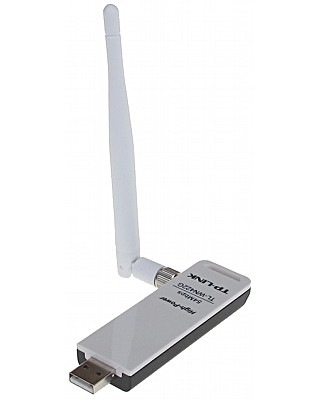
Quick install of Linux firmware htc_9271.fw for TP-LINK TLWN422G USB Wireless
Download firmware from here or search for newer.
http://wireless.kernel.org/download/htc_fw/1.3/htc_9271.fw
sudo cp htc_9271.fw /lib/firmware/.
Plug in device and do a dmesg to see if firmware is loaded.
Works great on airodump-ng, injection is super.\
lsusb
Bus 001 Device 004: ID 0cf3:1006 Atheros Communications, Inc. TP-Link TL-WN322G v3 / TL-WN422G v2 802.11g [Atheros AR9271]
Don't waste time trying to compile anything else.
WindyCityTech Blogger
WindyWindyCityTech Wordpress
Saturday, 16 March 2013
Notes for configuring udev rules for em28xx USB capture card
Goal:
to create static /dev/video10 for plug in USB capture device em28xx. Static video card location using udev rules ensures that the correct video device is utilised during reboots. Used for motion program www.lavrsen.dk
Soloution:
auto create a symlink from kernel assigned video address to /dev/video10 when em28xx is plugged in.
Plug in device and note video number assignment i.e. video0
then use this command to search for variables that can uniquely identify this device.
udevadm info -a -p $(udevadm info -q path -n /dev/video0)
Create udev rule:
KERNEL=="video[0-9]*", DRIVERS=="em28xx", SYMLINK+="video10"
Where:
KERNEL=="video[0-9]*" binds this rule to only video devices
DRIVERS=="em28xx" bind the rule to devices using driver em28xx
SYMLINK+="video10" creates a symlink from /dev/videoX to /dev/video10
Does it work:
ls /dev/video*
sudo service udev restart
References:
http://www.mythtv.org/wiki/Device_Filenames_and_udev
WindyCityTech Blogger
WindyWindyCityTech Wordpress
to create static /dev/video10 for plug in USB capture device em28xx. Static video card location using udev rules ensures that the correct video device is utilised during reboots. Used for motion program www.lavrsen.dk
Soloution:
auto create a symlink from kernel assigned video address to /dev/video10 when em28xx is plugged in.
Plug in device and note video number assignment i.e. video0
then use this command to search for variables that can uniquely identify this device.
udevadm info -a -p $(udevadm info -q path -n /dev/video0)
Create udev rule:
KERNEL=="video[0-9]*", DRIVERS=="em28xx", SYMLINK+="video10"
Where:
KERNEL=="video[0-9]*" binds this rule to only video devices
DRIVERS=="em28xx" bind the rule to devices using driver em28xx
SYMLINK+="video10" creates a symlink from /dev/videoX to /dev/video10
Does it work:
ls /dev/video*
sudo service udev restart
References:
http://www.mythtv.org/wiki/Device_Filenames_and_udev
WindyCityTech Blogger
WindyWindyCityTech Wordpress
Tuesday, 5 June 2012
Motion webcam two webcams change order on boot /dev/video0 persistent linux ubuntu
Copied from various resources on the web, Original Reference Here
When using Motion http://www.lavrsen.dk/foswiki/ bin/view/Motion with multiple usb webcams, sometimes the dev order of the webcams changes on reboot of a machine.
i.e. /dev/video0 becomes dev/video1
This can seriously stuff things up. To overcome this, create a udev rule to lock/assign a device dev location.
First do a lsusb, notice that I have two webcams, one is built into the screen and the other is USB connected.
Take note of the ID of the webcam you want
i.e 045e:00f7
Now do a:
Edit this file and enter the following:
I assigned the webcam to give a default location of /dev/video5 so it would never conflict with other webcams fitted in the future (hopefully)
Don't forget to modify your ~/.motion/motion.conf file and change the video device to /dev/video5
What happens if you have two webcams and they are both the same? Fuuuuuuuuuuuuuuuuu!!!!!!!!!!!! !!!
WindyCityTech Blogger
WindyWindyCityTech Wordpress
When using Motion http://www.lavrsen.dk/foswiki/
i.e. /dev/video0 becomes dev/video1
This can seriously stuff things up. To overcome this, create a udev rule to lock/assign a device dev location.
First do a lsusb, notice that I have two webcams, one is built into the screen and the other is USB connected.
Take note of the ID of the webcam you want
i.e 045e:00f7
Now do a:
sudo touch /etc/udev/rules.d/25-name-video-devices.rulesEdit this file and enter the following:
SUBSYSTEM=="video4linux", BUS=="usb", SYSFS{idVendor}=="045e", SYSFS{idProduct}=="00f7", NAME="video5"
I assigned the webcam to give a default location of /dev/video5 so it would never conflict with other webcams fitted in the future (hopefully)
Don't forget to modify your ~/.motion/motion.conf file and change the video device to /dev/video5
What happens if you have two webcams and they are both the same? Fuuuuuuuuuuuuuuuuu!!!!!!!!!!!!
WindyCityTech Blogger
WindyWindyCityTech Wordpress
Labels:
camera,
CCTV,
Linux,
motion,
security,
ubunu,
udev,
udev rules,
USB,
Video,
Video Camera,
Webcam
Saturday, 2 July 2011
Testing fake USB Flash Drives with H2testw
Fuck those pricks that want to rip people off, selling fake drives on eBay. Some people buy these cheap drives on ebay without knowing that they could be fake.
Using H2testw program is the simplest way of testing your flash drive. You just download the zip and run the executable on a windows crap box.
Direct download
| FAIL! |
If you have a failed drive, you should try to get your money back from the person who sold it to you and chuck the drive out!
WindyCityTech Blogger
windywindycitytech wordpress
Monday, 13 June 2011
Huawei k3765 repair and unlock
One of these 3G dongles suffered some damage the other day, when it got kneed slightly bending the USB connector.
Removing two screws near the USB connector allowed disassembly.
There was visible damage on the USB connector outer, the surface mounted leads and the board. The leads were straightened and resoldered.
A few more pics of the insides of the modem.
Unlocking was simple as well:
- Install the device driver, using the Mobile partner software, Setup_Mobile_Partner_v.16.001.06.01.500.exe
- Flash the device using the hacked firmware UTPS16.001.06.01.500_VDF.exe
- Go to this address subsitute the url to your imei
http://bb5.at/huawei.php?imei=123456789012347 - Get the unlock code by installing a nonstandard sim.
- Done
windywindycitytech wordpress
Thursday, 9 June 2011
USB tethering ZTE V9 with Ubuntu 11.04
No Problems experience here.
WindyCityTech Blogger
windywindycitytech wordpress
- Plug in the USB connection
- Hit 'back' to get out of the data storage screen
- Go to settings > Wireless & networks > Tethering & portable hotspot > USB tethering
- Network manager will now auto connect
| lsusb |
WindyCityTech Blogger
windywindycitytech wordpress
Subscribe to:
Posts (Atom)

